Detected instantly — no download, no signup needed
— × —
Your screen resolution in pixels
Browser width
—
px
Browser height
—
px
Pixel ratio
—
dppx
Color depth
—
bit
Orientation
—
OS
—
Browser
—
Available width
—
Available height
—
Touch support
—
User agent
—
Google AdSense — 728×90 Leaderboard (Mid)
From the blog
Beginner guide
What is screen resolution and why does it matter?
April 2025 · 5 min read
Learn the difference between 1080p, 4K, and Retina displays in plain English.
Read article →
Web design
Most common screen resolutions in 2025
March 2025 · 6 min read
Which screen sizes are your visitors actually using? Global analytics data broken down.
Read article →
Responsive design
How to make your website look perfect on every screen
February 2025 · 7 min read
A practical checklist for building sites that work beautifully on phones, tablets, and desktops.
Read article →
Monitors
1080p vs 1440p vs 4K — which should you choose?
January 2025 · 6 min read
A side-by-side comparison of the three most popular resolutions to help you decide.
Read article →
Mobile
Phone screen sizes explained — 2025 guide
December 2024 · 5 min read
iPhone vs Android, logical vs physical pixels, notches — a complete guide to phone displays.
Read article →
Deep dive
Pixels per inch — why PPI matters more than resolution
November 2024 · 6 min read
A 4K phone and a 4K cinema screen look completely different. Here is why pixel density is what really counts.
Read article →
Google AdSense — 728×90 Leaderboard (Bottom)
What is screen resolution and why does it matter?
April 2025 · Beginner guide · 5 min read
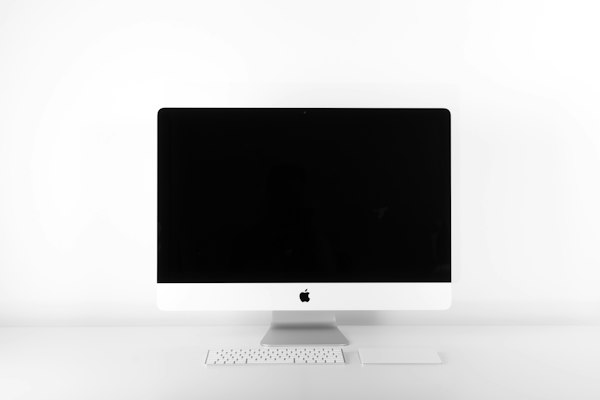
High-resolution displays pack more pixels into the same physical space, producing sharper images and crisper text.
If you have ever wondered why some websites and images look sharp on one screen but blurry on another, the answer almost always comes down to screen resolution. Understanding this single concept can change how you shop for monitors, design websites, and think about your digital experience.
The basics: pixels and resolution
Your screen is made up of millions of tiny dots called pixels. Screen resolution refers to the total number of these pixels arranged in a grid — width by height. A resolution of 1920×1080 means your display has 1,920 columns and 1,080 rows of pixels, totalling just over 2 million individual dots. The more pixels packed into a display, the sharper and more detailed everything looks.
Quick tip: Use our free detector on the home page to instantly see your exact screen resolution, browser window size, and pixel density without installing anything.
Resolution vs. screen size
A larger screen does not automatically mean a sharper image. What matters is pixel density — how many pixels are packed into each inch, measured in PPI. A 27-inch monitor at 1080p will look noticeably softer than a 24-inch monitor at 1440p, because the same number of pixels are spread across a larger area.
Common resolutions explained
720p (1280×720) — HD. Still found on budget laptops and older TVs.
1080p (1920×1080) — Full HD. The most common resolution worldwide.
1440p (2560×1440) — QHD. Popular among gamers and professionals.
4K (3840×2160) — Ultra HD. Increasingly standard on high-end laptops.
5K / 8K — Rare. Found on Apple Studio Displays and specialist monitors.
Why it matters for websites
Web designers care deeply about screen resolution because it directly affects how layouts, images, and text appear to visitors. A design built for 1920px wide screens may look cramped on a 1280px laptop or broken on a mobile phone. This is why modern websites use responsive design — flexible layouts that adapt to whatever screen the visitor is using.
Most common screen resolutions in 2025 — what designers need to know
March 2025 · Web design · 6 min read
Global analytics data reveals which screen sizes your visitors are actually using — crucial knowledge for any web designer.
Every year, the landscape of screen sizes shifts as new devices enter the market. Designing without knowing this data is like building a store without knowing who your customers are.
The dominance of mobile
As of 2025, mobile devices account for over 55% of all global web traffic. Most phones have screens in the 360px–430px wide range held in portrait mode.
Resolution
Device type
Global share
1920×1080
Desktop / Laptop
~25%
Top
390×844
iPhone 14/15
~8%
1366×768
Laptop
~7%
2560×1440
Desktop / MacBook
~6%
360×800
Android mid-range
~6%
1536×864
Laptop
~5%
414×896
iPhone XR/11
~4%
412×915
Android flagship
~4%
Key insight: Design mobile-first. Start with the smallest screen and scale up — it is far easier to add complexity for larger screens than to strip it away.
What this means for your breakpoints
Practical CSS breakpoints most developers use: 480px (small phones), 768px (tablets), 1024px (small laptops), 1280px (standard laptops), and 1920px (wide desktops). You need layouts that work gracefully within these ranges, not a perfect layout for every pixel.
How to make your website look perfect on every screen size
February 2025 · Responsive design · 7 min read
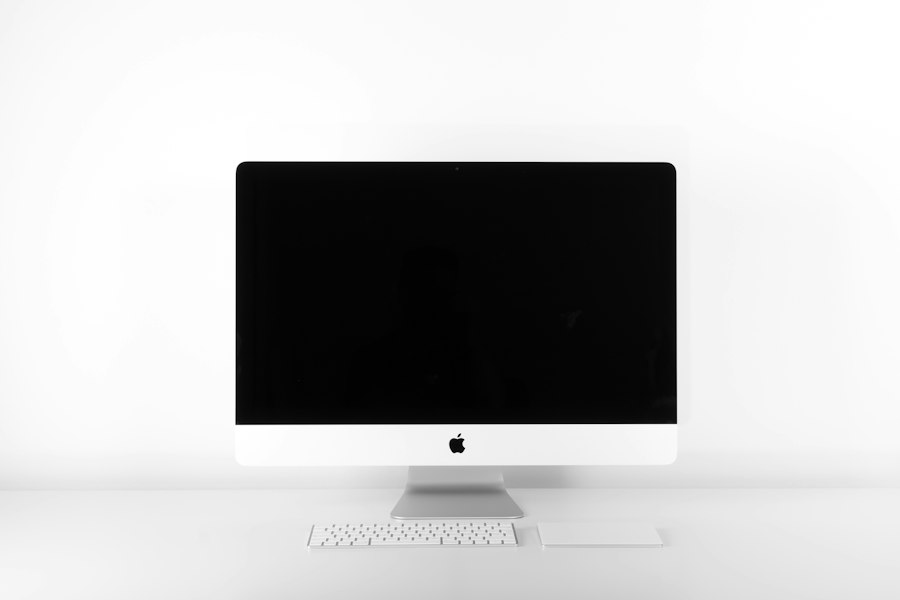
A truly responsive website adapts seamlessly from a small phone to a widescreen desktop monitor.
Building a website that looks polished on a 6-inch phone and a 32-inch widescreen simultaneously used to be a specialist skill. Today it is an expectation. Here is a practical, no-nonsense guide.
1. Start with the viewport meta tag
Every responsive website must include this line in the HTML head. Without it, mobile browsers zoom your desktop layout out to fit the screen, producing a tiny unreadable page that users immediately leave.
Hardcoding widths in pixels is the number one cause of broken layouts. Use percentages, em, rem, vw, and vh instead. A column set to width: 600px will overflow on a 375px phone. A column set to width: 90% will always look right.
3. CSS media queries
Media queries let you write different CSS rules for different screen sizes. The best pattern is to write base styles for mobile, then add complexity for larger screens. This mobile-first approach means your smallest layout is your default — the one that loads fastest.
4. Use CSS Grid and Flexbox
These modern layout tools are built for responsive design. A grid with auto-fit columns automatically wraps to the right number for any screen width with just one line: grid-template-columns: repeat(auto-fit, minmax(250px, 1fr)).
5. Test on real devices
Browser developer tools are useful but imperfect. Real devices have different pixel densities, touch targets, font rendering, and performance characteristics. At minimum, test on a real iPhone and Android device before launching.
Final tip: Use our free screen detector to quickly check any visitor's screen size. Share the link with clients when you need to know what resolution they are viewing your design at.
1080p vs 1440p vs 4K — which screen resolution should you choose?
January 2025 · Monitors · 6 min read
The resolution you choose affects everything from text sharpness to how hard your GPU has to work.
Shopping for a new monitor or laptop? The resolution choice you make will affect your experience every single day. Here is a clear-eyed comparison of the three most popular options.
1080p — the reliable everyday choice
Full HD (1920×1080) remains the most widely used resolution worldwide. It is cheap to produce, runs well on mid-range hardware, and is sharp enough for everyday work on screens up to about 24 inches. Beyond 24 inches, individual pixels start to become visible and text loses crispness.
1440p — the sweet spot for most people
Quad HD (2560×1440) has become the most recommended resolution for serious users in 2025. It offers 78% more pixels than 1080p, making text noticeably sharper and giving you meaningfully more screen real estate. It works well on 24–32 inch screens, and modern mid-range graphics cards handle it comfortably.
4K — stunning sharpness, real trade-offs
Ultra HD (3840×2160) produces a genuinely impressive image — text looks almost print-like. However, 4K monitors cost significantly more, older GPUs struggle, and on screens under 27 inches the sharpness difference over 1440p is barely noticeable. 4K makes most sense on 32-inch monitors and above.
Resolution
Best screen size
GPU demand
Best for
1080p
Up to 24"
Low
Budget, casual use
1440p
24–32"
Medium
Work, gaming, design
4K
27"+ or laptop
High
Photo/video, premium
Not sure what resolution your screen is? Use our free detector on the home page — it shows your exact resolution and pixel density instantly.
The verdict
For most people, 1440p on a 27-inch monitor is the best all-round choice in 2025. Sharper than 1080p, runs well on current hardware, costs far less than 4K. If you are a professional photo or video editor, step up to 4K. On a tight budget? 1080p is still completely fine.
Phone screen sizes explained — everything you need to know in 2025
December 2024 · Mobile · 5 min read
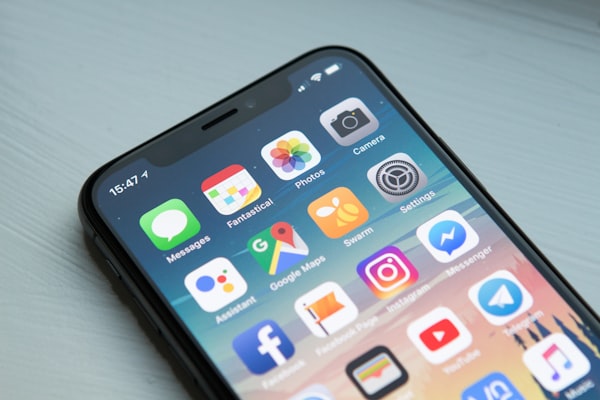
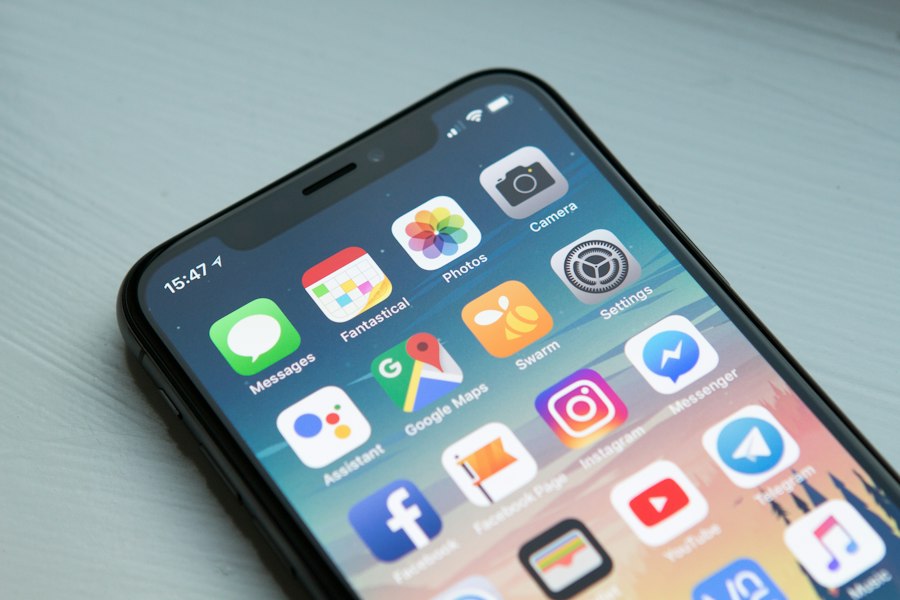
Modern smartphones pack extraordinary pixel density into compact screens — but understanding the numbers requires some nuance.
Phone screen specifications are notoriously confusing because the physical resolution, the logical resolution, and what you actually see are all different things.
Physical vs. logical pixels
Your phone almost certainly has a higher physical resolution than what websites and apps use to lay out their content. Apple's Retina displays use a 3× pixel ratio — every logical pixel is rendered using 9 physical pixels. This makes everything appear razor sharp without apps needing to redesign for wildly different pixel counts.
The iPhone 15 Pro has a physical resolution of 2556×1179, but websites see it as a 852×393 logical pixel screen. When a web developer sets something to 390px wide, it fills the full width of an iPhone screen.
Phone
Physical resolution
Logical resolution
PPI
iPhone 15 Pro
2556×1179
852×393
460
iPhone 15
2556×1179
390×844
460
Samsung Galaxy S24
3088×1440
412×915
501
Google Pixel 8
2400×1080
412×915
428
iPhone SE (2022)
1334×750
375×667
326
Tip for developers: Always design to logical pixel dimensions, not physical ones. Our screen detector shows the logical resolution your phone reports — this is the number that matters for web layout.
Aspect ratios and notches
Modern phones use tall aspect ratios — typically 19.5:9 or 20:9. Dynamic Islands, punch-hole cameras, and under-display cameras all eat into usable screen area differently. When designing mobile interfaces, always account for safe areas at the top and bottom where system UI appears.
Pixels per inch explained — why PPI matters more than resolution
November 2024 · Deep dive · 6 min read
Two screens with identical resolutions can look completely different depending on their physical size and pixel density.
If a 55-inch cinema display and a 6-inch phone both have 4K resolution, why does the phone look far sharper? The answer is pixels per inch — PPI — and once you understand it, you will never shop for a screen the same way again.
What is PPI?
Pixels per inch measures how densely pixels are packed into a display's physical surface. A higher PPI means smaller individual pixels, which means they are less visible to the naked eye, which means a sharper image. A 4K phone screen (6 inches) achieves around 800 PPI. A 4K 55-inch TV achieves only around 80 PPI. Same resolution, ten times the pixel density, radically different sharpness.
The PPI threshold for human vision
The human eye stops being able to distinguish individual pixels at around 300 PPI when viewing a phone at arm's length. For a desktop monitor at 50–80cm, you can get away with 90–110 PPI before pixels become visible. Apple used this insight to market the original Retina display — "so sharp your eye cannot detect individual pixels."
PPI range
Perceived quality
Typical use case
72–96 PPI
Visible pixels
Large TVs, budget monitors
100–150 PPI
Acceptable
Desktop monitors (standard)
150–220 PPI
Good
Laptops, premium monitors
220–300 PPI
Very sharp
Retina MacBooks, OLED laptops
300–500 PPI
Pixel-perfect
Modern smartphones
500+ PPI
Beyond perception
VR headsets, some flagships
Why PPI matters for web developers
High-PPI displays expose a critical issue: standard 1× resolution images look blurry on Retina and high-DPI screens. If your website displays a photo at 400×300 CSS pixels on a 2× device, the browser stretches a 400px image to fill 800 physical pixels — and the result looks soft. Always serve images at 2× or 3× resolution, or use SVG for icons and illustrations entirely.
Check your screen's pixel ratio using our detector on the home page. A "Pixel ratio" reading of 2.0 means you are on a Retina or high-DPI display — images should be served at 2× resolution for maximum sharpness.
Google AdSense — 728×90 Leaderboard
About us
Built by screen nerds, for everyone.
What is MyScreenSize.site?
MyScreenSize.site is a free, no-signup tool that instantly detects and displays your screen resolution, browser window dimensions, pixel density, color depth, device orientation, and more — right in your browser, with no software to install.
We built this because we were tired of finding outdated tools that only showed half the picture. Knowing your resolution is useful. Knowing your browser width, device pixel ratio, OS, and whether you have touch support — all at once — is genuinely powerful, whether you are a developer debugging a layout, a designer checking specs, or just someone curious about their display.
10+
Display metrics detected
0
Software to install
100%
Free, always
0
Data collected
Who is this for?
Web developers — quickly check what resolution a client is seeing without asking them to navigate system settings.
UI/UX designers — verify your design looks correct at a visitor's actual screen size before launch.
QA testers — document exact screen specs when filing bug reports related to layout issues.
Content creators — understand the resolutions your audience uses to format thumbnails and images correctly.
Everyday users — find out your screen specs without digging through settings menus.
How does the detector work?
The screen detector runs entirely in your browser using standard JavaScript APIs — it reads screen.width, window.innerWidth, window.devicePixelRatio, screen.colorDepth, and navigator.userAgent.
Crucially, none of this data is sent anywhere. Everything is read and displayed locally in your browser. We do not have a server receiving your screen specs. The detector also updates in real time when you resize your window.
Our blog
Alongside the tool, we publish practical articles about screen resolutions, responsive web design, pixel density, monitor buying guides, and mobile display technology. Our goal is to make display specs genuinely understandable for everyone — not just engineers.
MyScreenSize.site is designed to collect as little information about you as possible. When you visit, we may collect: standard web server logs (IP address, browser type, pages visited), anonymous usage data via Google Analytics, and information you voluntarily submit through our contact form.
We do not collect, store, or transmit your screen resolution, browser window size, pixel density, or any other display data detected by the screen detector tool. All detection runs locally in your browser.
2. How the screen detector works
The screen detector reads display properties from your browser using standard JavaScript APIs — screen.width, screen.height, window.innerWidth, window.devicePixelRatio, screen.colorDepth, and navigator.userAgent. This data is displayed directly in your browser and never sent to our servers or shared with any third party.
3. Cookies
MyScreenSize.site does not set any first-party cookies. However, Google AdSense and Google Analytics — third-party services we use — may set cookies on your device. These are governed by Google's privacy policy. You can control cookie settings through your browser preferences.
4. Google AdSense and advertising
We use Google AdSense to display advertisements. Google AdSense uses cookies to serve ads based on your prior visits to this and other websites. You may opt out of personalised advertising by visiting Google's Ads Settings. Google's data collection through AdSense is governed by Google's Privacy Policy.
5. Google Analytics
We use Google Analytics to understand how visitors use our site. It collects anonymised data and does not identify you personally. We have enabled IP anonymisation so your full IP address is never stored. You can opt out using the Google Analytics Opt-out Add-on.
6. Third-party links
Our blog articles may contain links to external websites. We are not responsible for the privacy practices of those websites. We encourage you to read the privacy policy of any external site you visit.
7. Children's privacy
MyScreenSize.site is not directed at children under 13. We do not knowingly collect personal information from children under 13. If you believe your child has provided us with personal information, please contact us and we will delete it promptly.
8. Your rights
Depending on your location, you may have rights under GDPR or CCPA including: the right to access, correct, or delete your personal data; the right to object to processing; and the right to data portability. To exercise any of these rights, contact us at hello@kurtsai.com. We will respond within 30 days.
9. Changes to this policy
We may update this Privacy Policy from time to time. When we do, we will update the "Last updated" date at the top of this page. Continued use of MyScreenSize.site after changes are posted constitutes acceptance of the updated policy.